If your Roku TV feels slow, apps take longer to open, or streaming freezes at the worst moments, cache buildup is often the hidden reason. Many users never realize Roku TV stores temporary files in the background. Over time, this stored data affects performance, causes glitches, and even leads to app crashes. Learning how to clear cache on Roku TV can instantly improve speed, stability, and overall viewing experience.
This guide explains everything in simple language, using real experience, trusted information, and practical steps that actually work. By the end, you will know exactly how to refresh your Roku TV safely and keep it running like new.
Understanding Cache on Roku TV
Cache refers to temporary data saved by apps and the Roku system to help content load faster. Streaming apps like Netflix, Hulu, or YouTube store images, preferences, and session data locally. While this helps short term performance, excessive cache can overwhelm system memory.
Roku TVs do not offer a visible cache clear button like smartphones or browsers. Instead, cache management happens through indirect but effective methods. This often confuses users and leads to frustration. Knowing how Roku handles cache is essential before clearing it correctly.
Why Clearing Cache on Roku TV Matters
Over time, cached data becomes outdated or corrupted. When that happens, apps may stop responding, audio may fall out of sync, or videos may buffer endlessly even with fast internet. Clearing cache removes this clutter and forces apps to load fresh data.
Users often notice smoother navigation, faster app launches, and fewer crashes after clearing cache. It also helps when apps fail to update or refuse to open. Regular cache clearing keeps Roku TV performance consistent and reliable.
Read Also: Is Trader Joe’s Expensive? Real Price Comparison Guide
How Roku TV Stores Cache Without a Clear Option
Roku TV uses a closed operating system designed for simplicity. Unlike Android TVs, Roku does not provide a menu option labeled clear cache. Instead, the system clears temporary data automatically during certain actions such as restarting, removing channels, or using a system reset code.
This design protects the system from accidental damage but requires users to know the correct workaround methods. These methods are officially recognized by Roku and safe when done properly.
How to Clear Cache on Roku TV Using System Restart
Restarting the Roku TV is the easiest and safest way to clear temporary cache. This process clears short term memory and refreshes system resources without deleting apps or settings.
To restart, open settings from the home screen, navigate to system, then power, and select system restart. Confirm the action and allow the TV to reboot fully. After restart, apps reload fresh data, often fixing lag and freezing issues instantly.
Many experts recommend restarting Roku TV once every week for optimal performance, especially if the TV is used heavily for streaming.
Clearing Cache on Roku TV Using Remote Shortcut
Roku provides a hidden remote shortcut that clears cache and resets app memory. This method is widely trusted and used by technicians.
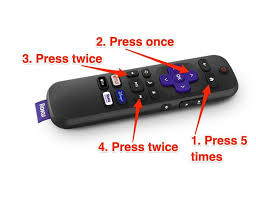
Press the home button five times, then press up once, rewind twice, and fast forward twice. After entering this sequence, the TV freezes briefly and then restarts automatically. This process clears cached data across apps without removing user settings.
This method is ideal when apps crash repeatedly or when the TV becomes unresponsive. It is safe and does not void warranty or cause data loss.
How to Clear Cache by Removing and Reinstalling Channels
Sometimes a single app causes problems due to corrupted cache. Removing and reinstalling that specific channel clears its stored data completely.
From the Roku home screen, highlight the problematic app, press the star button on the remote, and select remove channel. Restart the Roku TV before reinstalling the app from the channel store. This ensures all residual cache is removed.
This method works well for apps that freeze on launch or fail to play content despite internet working properly.
Power Cycling Roku TV for Deep Cache Clearing
Power cycling clears deeper memory cache that normal restart may not remove. This method refreshes system hardware components and internal memory.
Turn off the Roku TV and unplug it from the power source. Wait at least two minutes to allow residual power to drain completely. Plug the TV back in and turn it on. This process clears background cache and improves performance noticeably.
Power cycling is especially helpful after software updates or prolonged usage without rest.
Factory Reset as Last Resort Cache Solution
Factory reset clears all cache, apps, settings, and stored data. This method should only be used when other solutions fail.
Go to settings, system, advanced system settings, and select factory reset. Follow on screen instructions carefully. After reset, the Roku TV returns to original state and requires setup again.
Factory reset fixes severe performance issues, constant crashes, and unresponsive systems. Always back up account information before proceeding.
How Often Should Cache Be Cleared on Roku TV
There is no fixed rule, but general usage patterns provide guidance. Light users can clear cache once every month. Heavy streaming households benefit from weekly restarts or remote shortcut clearing.
If you notice buffering, audio sync issues, slow navigation, or apps not loading, clearing cache immediately helps. Preventive cache management ensures smooth performance long term.
Common Signs Cache Needs Clearing
Sluggish menu navigation, frequent buffering despite fast internet, apps crashing unexpectedly, remote lag, and delayed audio are strong indicators of cache overload. Ignoring these signs leads to worsening performance over time.
Addressing cache early prevents system strain and extends device lifespan.
Does Clearing Cache Delete Accounts or Preferences
Clearing cache using restart or remote shortcut does not delete apps, logins, or preferences. Only factory reset removes everything. Safe cache clearing methods maintain user data while improving performance.
Understanding this reassures users hesitant to try cache clearing methods.
Clearing Cache Improves Streaming Quality
Cache clearing does not increase internet speed directly, but it removes playback bottlenecks. This allows apps to fetch fresh data efficiently, improving stream stability and resolution consistency.
Users often report fewer buffering interruptions and faster content loading after clearing cache.
Conclusion
Knowing how to clear cache on Roku TV empowers users to maintain peak performance without technical frustration. Roku’s simple system design hides cache controls, but trusted methods like restart, remote shortcuts, channel reinstall, and power cycling provide effective solutions.
Regular maintenance ensures smoother streaming, fewer crashes, and longer device life. Whether you experience minor lag or major issues, clearing cache is often the fastest fix.
FAQs
Can you clear cache directly on Roku TV
Roku TV does not have a clear cache button, but cache can be cleared using restart, remote shortcut, or power cycling methods.
Does clearing cache delete apps on Roku TV
No, clearing cache will not delete apps or account data unless you perform a factory reset.
How often should I clear cache on Roku TV
Clearing cache once a week or when performance issues appear helps keep Roku TV running smoothly.
Why is my Roku TV slow even with good internet
Cached data buildup, app glitches, or memory overload can slow down Roku TV despite a strong internet connection.
Is it safe to use the Roku remote shortcut to clear cache
Yes, the remote shortcut method is safe, official, and commonly used to refresh Roku TV system memory.