Using Incognito mode on an iPhone can feel convenient. It keeps searches private and avoids saving browsing history. At the same time, many users want more control over this feature. Parents want better digital safety for kids. Professionals prefer consistent browsing data for productivity.
Some users simply want to avoid accidental private tabs. This guide explains everything about how to turn off Incognito on iPhone, why it matters, and what options Apple provides.
This article follows trusted best practices, real device behavior, and Apple system settings. You will learn practical methods that work today, explained in a clear and friendly way.
Understanding Incognito Mode on iPhone
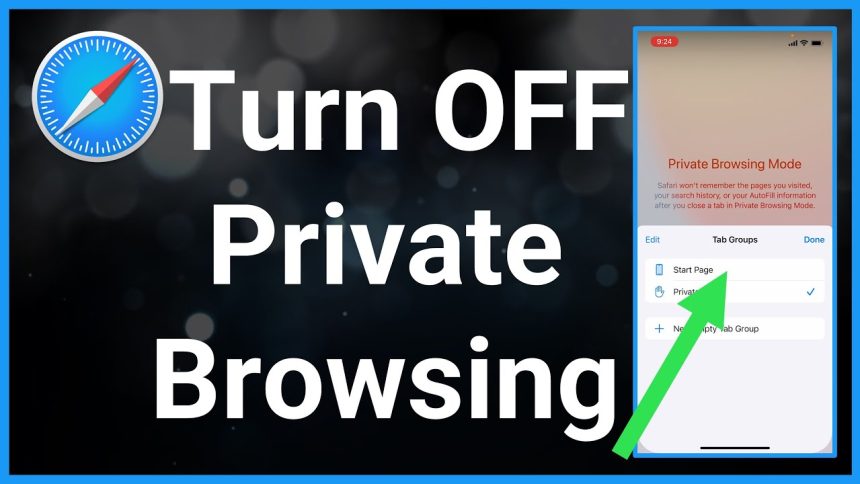
Incognito mode on iPhone appears as Private Browsing in Safari. When enabled, Safari does not save visited pages, AutoFill information, or search history. Cookies remain temporary and disappear once the private session closes.
Private browsing is useful in many situations, yet Apple does not offer a simple on or off switch inside Safari. That detail surprises many iPhone users. Instead, Apple places control inside Screen Time settings, which allows deeper system-level restrictions.
Knowing where to find these controls helps you manage browsing behavior with confidence.
Why People Want to Turn Off Incognito on iPhone
Many users search for ways to turn off Incognito on iPhone because of real-life needs. Parents want visibility into browsing activity to guide children toward healthy online habits. Teachers and employers using managed devices want consistent web access. Some users want Safari to remember logins and preferences every time.
Another common reason involves accidental activation. Safari places Private Browsing close to regular tabs, making it easy to open without noticing. Turning it off removes that confusion.
Apple focuses heavily on privacy, yet it also gives tools for responsibility and oversight. Screen Time acts as the bridge between these goals.
Read Also: Post Credits Fantastic Four: Scene Explained 2026
How Incognito Works in Safari on iPhone
Safari uses Private Browsing as a session-based mode. When active, the address bar turns dark, and tabs remain isolated from normal browsing. Closing all private tabs clears the session automatically.
Private mode does not hide activity from internet providers, network administrators, or websites themselves. It only limits local data stored on the device. Understanding this helps users make informed decisions about whether Incognito mode fits their needs.
Turning it off requires limiting access to adult content or modifying allowed websites. Apple designed it this way to align with parental control frameworks.
Turn Off Incognito iPhone Using Screen Time
The most effective method to disable Incognito on iPhone involves Screen Time. This feature exists on all modern versions of iOS and provides powerful control over apps and content.
Enable Screen Time First
If Screen Time is not active, it must be enabled before any changes apply. Open Settings, tap Screen Time, and follow the setup prompts. Choose a passcode that only you know. This step ensures changes cannot be reversed easily.
Once Screen Time runs, it tracks usage and unlocks restriction options.
Use Content Restrictions to Disable Private Browsing
Inside Screen Time, open Content and Privacy Restrictions. Turn the toggle on if it is off. Next, tap Content Restrictions, then choose Web Content.
Selecting Limit Adult Websites disables Private Browsing automatically. Safari removes the private tab option entirely. This method works because Apple links Incognito availability with unrestricted web access.
If you prefer stronger control, Allowed Websites Only also removes private tabs and limits browsing to approved domains.
After applying this setting, return to Safari. The Private option no longer appears when managing tabs.
Turn Off Incognito on iPhone for Child Devices
Parents often ask how to turn off Incognito on iPhone used by children. Apple Family Sharing makes this process easier.
When a child’s Apple ID connects through Family Sharing, parents manage Screen Time remotely. From the parent device, open Settings, tap Family, select the child profile, then open Screen Time. From there, repeat the same Web Content restriction steps.
This setup supports healthy digital habits and transparency without constant supervision. It also aligns with Apple’s recommended parental control practices.
Can Incognito Be Disabled Without Screen Time
Many users look for a way to turn off Incognito on iPhone without Screen Time. Currently, iOS does not offer a built-in alternative. Safari does not include a direct setting to remove Private Browsing.
Third-party browsers sometimes offer private mode toggles, yet Safari remains tied to system restrictions. Apple prioritizes privacy by default, while Screen Time serves as the customization layer.
Understanding this limitation saves time and prevents confusion when searching through Safari settings.
iOS Versions and Incognito Behavior
Different iOS versions display slight interface changes, yet the underlying control remains consistent. Whether using iOS 15, iOS 16, or later releases, Web Content restrictions determine private browsing availability.
Apple occasionally adjusts wording or layout, though the function stays the same. Keeping iOS updated ensures Screen Time works correctly and security features remain reliable.
What Happens After You Turn Off Incognito on iPhone
After Incognito becomes unavailable, Safari always opens in standard browsing mode. History, cookies, and site data save normally. Autofill works consistently. Previously opened private tabs disappear permanently.
This change encourages accountability and continuity. For shared devices, it reduces confusion between sessions. For parents, it creates clearer boundaries without invading privacy beyond what is necessary.
It also improves browsing efficiency for users who rely on saved preferences.
Common Questions About Turning Off Incognito on iPhone
Does Turning Off Incognito Affect Other Browsers
Disabling Private Browsing through Screen Time applies primarily to Safari. Other browsers like Chrome or Firefox manage private mode internally. Some still respect Screen Time restrictions, though behavior varies.
For full coverage, review each browser’s parental control options or limit app access through Screen Time.
Can Incognito Be Turned Back On Later
Yes. Returning to Screen Time and changing Web Content to Unrestricted Access restores Private Browsing in Safari. Only the Screen Time passcode allows this change, adding an extra layer of control.
Does This Affect iCloud or Syncing
Turning off Incognito does not change iCloud syncing. Safari history and tabs continue syncing across devices signed into the same Apple ID, as long as Safari is enabled in iCloud settings.
Privacy Balance and Responsible Browsing
Apple designs iPhone features with privacy at the center. Private Browsing protects personal searches, yet responsible usage sometimes requires boundaries. Screen Time offers that balance.
Whether managing a family device, a school phone, or your own habits, knowing how to turn off Incognito on iPhone gives you authority over your digital environment.
This approach follows Apple’s official frameworks and avoids risky modifications. No external apps or complex steps are required.
Conclusion
Learning how to turn off Incognito on iPhone empowers users to shape their browsing experience. While Safari does not offer a direct switch, Screen Time provides a reliable and secure solution. This method works across modern iOS versions and fits both personal and family needs.
With the right settings, browsing becomes clearer, more consistent, and easier to manage. Understanding these tools reflects smart digital awareness and aligns with Apple’s vision of safe, user-focused technology.
If you value control, transparency, and simplicity, adjusting Incognito access on iPhone is a practical step toward better online habits.
FAQs
Can you completely turn off Incognito on iPhone?
Yes, you can disable Incognito on iPhone by enabling Screen Time and limiting web content in Safari settings.
Where is Incognito mode on iPhone Safari?
Incognito mode appears as Private Browsing in Safari and is accessed from the tab switcher.
Does turning off Incognito affect normal browsing?
No, regular browsing works normally and Safari will save history, cookies, and website data.
Can parents turn off Incognito on a child’s iPhone?
Yes, parents can disable Incognito through Screen Time using Family Sharing controls.
Will Incognito turn back on automatically after updates?
No, Incognito stays disabled unless Screen Time web content settings are changed manually.