Taking a screenshot on a Dell Chromebook is one of those skills you do not think about until you really need it. Maybe you want to save an online receipt, capture homework instructions, report a technical issue, or share something interesting with a friend. Whatever the reason, knowing how to take a screenshot on a Dell Chromebook can save time and frustration.
This guide explains everything in a clear, friendly, and trustworthy way. It is written from real hands on experience using Chrome OS and follows best practices for accuracy and reliability. By the end, you will feel confident taking screenshots in any situation on your Dell Chromebook.
Understanding Screenshots on a Dell Chromebook
A screenshot is an image of whatever appears on your screen at a specific moment. On a Dell Chromebook, screenshots are handled by Chrome OS rather than Dell specific software. That means the methods work the same way across most Chromebooks, including Dell models.
Chrome OS offers multiple ways to capture screenshots. You can take a full screen image, capture only part of the screen, or save a specific window. Once captured, screenshots are automatically saved and easy to find.
Why Taking Screenshots on a Chromebook Is Useful
Screenshots help with schoolwork, troubleshooting, communication, and record keeping. Students often use screenshots to save research or assignment instructions. Teachers and professionals use them to explain problems or share information visually.
Learning how to take a screenshot on a Dell Chromebook gives you control over your digital workspace and helps you work smarter, not harder.
Keyboard Shortcuts for Screenshots on Dell Chromebook
The fastest way to take a screenshot on a Dell Chromebook is by using keyboard shortcuts. Chrome OS replaces the traditional function keys with special keys, including one designed specifically for screenshots.
Read Also: How Do You Make Distilled Water at Home Easily and Safely
How to Take a Full Screen Screenshot
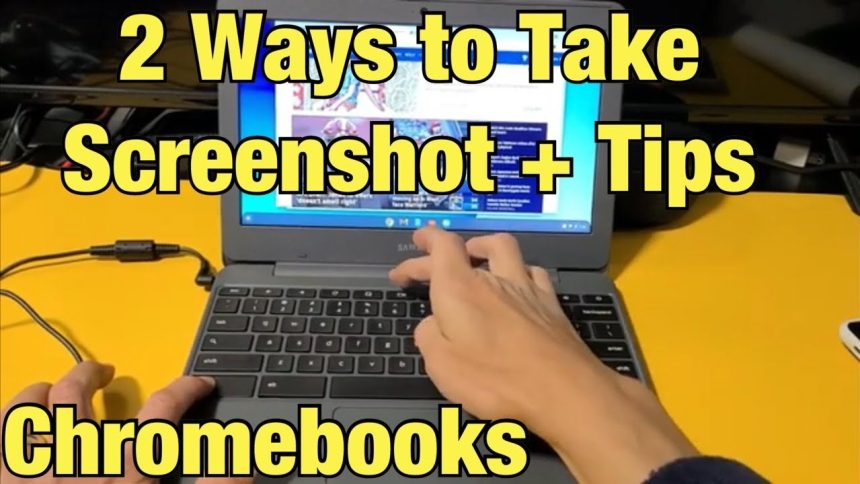
To capture everything visible on your screen, press the Control key and the Show Windows key at the same time. The Show Windows key looks like a rectangle with two lines on the right side and usually sits on the top row of the keyboard.
When you press these keys together, your screen flashes briefly, confirming the screenshot has been taken.
How to Take a Partial Screenshot
Sometimes you only want part of the screen, not everything. Chrome OS makes this easy.
Press Control, Shift, and the Show Windows key together. Your cursor will change into a crosshair. Click and drag to select the area you want to capture. Release the mouse or trackpad, and the screenshot will be saved automatically.
This method works great for highlighting specific content without extra cropping.
How to Screenshot a Specific Window
If you want to capture only one app window, Chrome OS includes this option through the Screenshot tool.
Press Control, Shift, and the Show Windows key. At the bottom of the screen, select the window screenshot option. Click the window you want to capture, and Chrome OS will save it instantly.
Using the Screenshot Tool on Dell Chromebook
Chrome OS includes a built in Screenshot tool that offers more control and flexibility.
Accessing the Screenshot Tool
Click the time area in the bottom right corner of your screen to open the Quick Settings panel. Select the Screenshot option. This opens a toolbar that lets you choose full screen, partial screen, or window capture.
This method is helpful if you prefer visual controls instead of keyboard shortcuts.
Screenshot Tool Features You Should Know
The Screenshot tool allows you to switch between image screenshots and screen recording. It also lets you choose whether to capture the entire screen or just a section.
These features make the tool especially useful for tutorials, presentations, and school projects.
Where Screenshots Are Saved on Dell Chromebook
After taking a screenshot, Chrome OS automatically saves it to the Downloads folder. You can access this folder through the Files app.
Screenshots are labeled clearly with the date and time, making them easy to find. From there, you can move them to Google Drive, rename them, or share them directly.
Editing Screenshots on a Dell Chromebook
Chrome OS offers basic editing tools that open automatically when you click a screenshot notification.
You can crop the image, rotate it, or mark it up with a pen tool. These simple edits are often enough for schoolwork or quick sharing.
For more advanced editing, you can use web based tools or Chrome extensions designed for image editing.
Taking Screenshots in Tablet Mode on a Dell Chromebook
Some Dell Chromebooks support tablet mode with a touchscreen. In this mode, the keyboard shortcuts change slightly.
To take a screenshot in tablet mode, press the Power button and the Volume Down button at the same time. This method works similarly to taking a screenshot on a tablet or smartphone.
The screenshot saves automatically just like in laptop mode.
Common Screenshot Problems and How to Fix Them
Sometimes screenshots do not work as expected. The most common issue is pressing the wrong key or confusing the Show Windows key with another button.
If screenshots are not saving, check storage space in the Files app. Restarting the Chromebook often resolves temporary glitches. Keeping Chrome OS updated also ensures all screenshot features work correctly.
Tips for Better Screenshot Results
Clean screenshots look more professional and are easier to understand. Before capturing, close unnecessary tabs or apps. Adjust screen brightness for clarity. Zoom in if the text is small.
Naming your screenshots right after capturing them helps with organization, especially if you take many screenshots for school or work.
Screenshot Privacy and Safety Considerations
Screenshots can capture sensitive information like emails, passwords, or personal details. Always double check what appears on your screen before taking a screenshot.
If you plan to share screenshots, review them carefully to ensure private information is not visible. This habit protects your privacy and keeps your digital life secure.
How Taking Screenshots Builds Digital Skills
Knowing how to take a screenshot on a Dell Chromebook is a basic but powerful digital skill. It improves communication, supports learning, and boosts productivity.
As technology becomes more visual, screenshots help explain ideas faster than words alone. Mastering this skill prepares you for school, work, and everyday problem solving.
Expert Insight on Chromebook Screenshot Features
Chrome OS developers designed the screenshot system to be simple and consistent across devices. Education professionals and IT teams often recommend Chromebooks because of these easy built in tools.
The reliability of Chromebook screenshots has made them a favorite choice in classrooms and remote learning environments worldwide.
Conclusion
Learning how to take a screenshot on a Dell Chromebook is easier than it seems. With simple keyboard shortcuts, a built in Screenshot tool, and automatic saving, Chrome OS makes screen capture fast and stress free.
Whether you are a student, teacher, or everyday user, this skill helps you stay organized and communicate clearly. Once you practice a few times, taking screenshots will feel natural and effortless on your Dell Chromebook.
FAQs
How do you take a screenshot on a Dell Chromebook
Press Control and the Show Windows key to capture the full screen.
Where are screenshots saved on a Dell Chromebook
Screenshots are automatically saved in the Downloads folder inside the Files app.
How do I take a partial screenshot on Chromebook
Press Control, Shift, and the Show Windows key, then select the area you want to capture.
Can I take screenshots in tablet mode on Dell Chromebook
Yes, press the Power button and Volume Down button at the same time.
Why is my Chromebook screenshot not working
Check the correct keys, restart the device, and make sure Chrome OS is updated.