If you ever wished you could write a message now and send it later, you are not alone. Many iPhone users search for how to send a text later on iPhone because timing matters. You may want to schedule a birthday wish, send a reminder at the right moment, or avoid texting someone too early or too late.
For years, iPhone users relied on workarounds, but recent updates finally made scheduled texting easier and more reliable.
This guide explains everything you need to know about sending a text later on iPhone. You will learn how the built-in feature works, how older iOS versions handle scheduling, and what options exist if your device does not support native scheduling yet. The tone stays simple, human, and practical, so you can follow along without confusion.
Can You Schedule Text Messages on iPhone
For a long time, iPhone users asked this question with frustration. Apple did not include a direct “send later” option inside the Messages app. That changed with newer iOS updates.
If your iPhone runs iOS 18 or later, you can now schedule messages directly in the Messages app. This update finally brings iPhone closer to features Android users enjoyed for years.
If your iPhone runs an older version of iOS, scheduled texting still works using Apple’s automation tools, though the process feels more manual.
Understanding your iOS version is the first step in learning how to send a text later on iPhone.
How the New Send Later Feature Works on iPhone
Apple introduced the Send Later option to make scheduled texting simple and intuitive. The feature lives directly inside the Messages app, so you do not need third-party apps or complicated shortcuts.
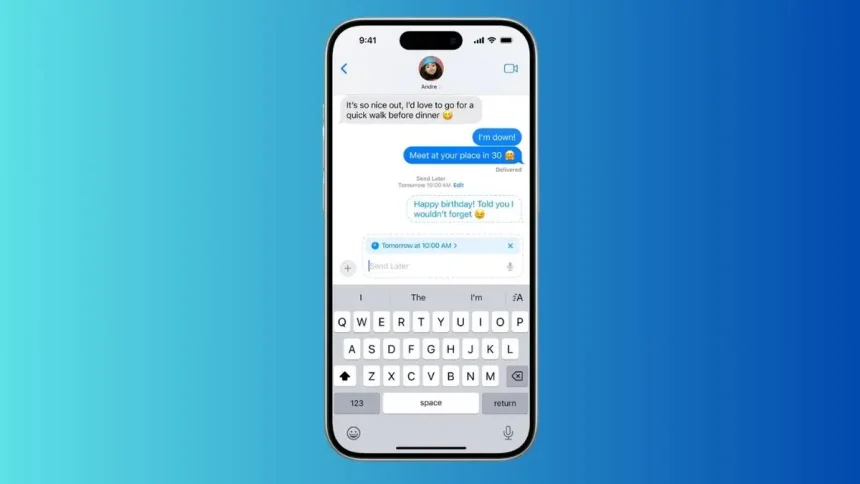
Once you type a message, you can choose a future date and time instead of sending it immediately. The message stays queued and automatically sends at the selected time, even if you forget about it.
This feature works for iMessage conversations and standard SMS texts, as long as your phone has network access at the scheduled time.
Read Also: Connections Hint September 18: NYT Puzzle Help & Clues
How to Send a Text Later on iPhone Using Messages App
Scheduling a Message on iOS 18 or Newer
Open the Messages app and select the conversation where you want to send the text. Type your message as usual in the text field. Instead of tapping the send arrow right away, tap and hold it. A menu appears giving you the option to send later.
Choose the date and time you want the message delivered. Once confirmed, the message appears in the conversation with a small indicator showing it is scheduled. When the chosen time arrives, your iPhone sends the message automatically.
This method feels natural and fast, which is exactly what iPhone users expected for years.
Editing or Canceling a Scheduled Text
If plans change, you can modify or cancel the scheduled message. Open the conversation, tap the scheduled message, and adjust the time or delete it. This flexibility makes the feature useful for both personal and professional communication.
How to Send a Text Later on iPhone Without iOS 18
Not every iPhone supports the newest software. If your device runs an older iOS version, you still have options.
Using the Shortcuts App for Scheduled Messages
The Shortcuts app allows iPhone users to automate actions, including sending messages at a specific time. While this method works, it requires more setup and feels less seamless than the built-in feature.
You create a personal automation that triggers at a certain time of day. The automation sends a message to a chosen contact with a preset text. Depending on your settings, you may need to confirm the action before it sends.
Although this approach takes more effort, it remains a reliable way to send a text later on iPhone without upgrading hardware.
Limitations of the Shortcut Method
Automations may require your phone to be unlocked or ask for confirmation, depending on system permissions. This means messages may not send fully automatically unless settings are carefully adjusted.
Despite limitations, many users relied on this solution for years before Apple added native scheduling.
Third-Party Apps for Scheduling Text Messages
Some apps claim to schedule texts on iPhone, but users should approach them carefully. Due to Apple’s privacy rules, most third-party apps cannot send messages automatically without user interaction.
These apps often rely on reminders or notifications prompting you to send the message manually. While helpful, they do not offer true automation like the native Send Later feature.
Using built-in iOS tools remains the safest and most reliable approach.
Why Sending a Text Later on iPhone Is Useful
Scheduled texting solves everyday problems. You can send birthday wishes at midnight without staying awake. You can remind coworkers during business hours without interrupting your evening. You can draft messages while thinking clearly and send them when emotions settle.
This feature also improves professional communication. Messages arrive at appropriate times, making you look thoughtful and organized.
Once users learn how to send a text later on iPhone, many find it hard to go back.
Common Questions About Scheduled Texts on iPhone
Many users worry about what happens if the phone is off or has no signal. Scheduled messages require the phone to be powered on and connected to cellular or Wi-Fi at the send time. If connectivity is delayed, the message sends once the connection returns.
Another concern involves privacy. Scheduled messages stay encrypted like normal iMessages. Apple does not read or store message content beyond what is required to deliver it.
Differences Between iMessage and SMS Scheduling
The Send Later feature works best with iMessage because Apple controls the full ecosystem. SMS messages depend on carrier availability, which may cause slight delays.
Despite this, scheduled SMS texts usually send successfully as long as the phone remains connected.
Understanding this difference helps set realistic expectations.
Troubleshooting Scheduled Messages
If a scheduled message does not send, check software version first. Make sure the device supports Send Later. Check network connection and battery level. Low power mode may delay background tasks.
Restarting the phone often resolves temporary issues. Keeping iOS updated ensures the feature works as intended.
Security and Trust in Apple’s Messaging Features
Apple emphasizes privacy and security. Scheduled texts use the same encryption standards as regular messages. This aligns with Apple’s broader commitment to user trust.
Because the feature is native, it integrates cleanly with system permissions and does not expose data to external services.
This reliability supports Apple’s reputation and strengthens user confidence.
Conclusion
Learning how to send a text later on iPhone changes how you communicate. With iOS 18 and newer, Apple finally delivers a smooth, built-in solution through the Messages app. For older devices, Shortcuts still offers a workable alternative.
Scheduled texting saves time, reduces stress, and improves communication timing. Whether for personal moments or professional messages, this feature adds meaningful convenience.
FAQs
Can you schedule a text on iPhone?
Yes, iPhone users can schedule texts using the Send Later feature on newer iOS versions or automations on older ones.
What iOS version allows scheduled texts?
Scheduled texting is available natively on iPhones running iOS 18 or later.
Do scheduled texts send automatically?
Yes, scheduled texts send automatically as long as the iPhone is powered on and connected to a network.
Can I schedule SMS texts or only iMessages?
You can schedule both iMessages and SMS texts, though SMS delivery depends on carrier connectivity.
Can I edit or cancel a scheduled text?
Yes, scheduled texts can be edited or canceled before they are sent.