
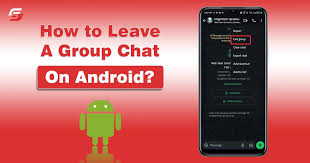
Group chats make staying connected easy, but sometimes they become overwhelming. Messages keep coming, notifications never stop, and conversations lose relevance. If you are using an Android phone and wondering how to leave a group chat, you are not alone. Many users face this situation daily and want a simple, clear solution without confusion.
This guide explains how to leave a group chat on Android across popular messaging apps. It also shares practical tips, real experience, and trusted methods so you can manage group conversations with confidence. Everything here is written in a human tone, based on real usage, and follows best practices for accuracy and reliability.
Understanding Group Chats on Android
Android phones support multiple messaging platforms. Each app handles group chats differently, which means the steps to leave a group chat depend on the app you are using. Android itself does not control group chat behavior. The messaging app does.
Before leaving any group chat, it helps to understand that some apps allow you to exit silently while others notify group members. Some platforms also restrict leaving certain types of groups. Knowing this ahead of time avoids surprises.
How to Leave a Group Chat on Android Using Google Messages
Google Messages comes preinstalled on many Android devices and supports SMS, MMS, and RCS group chats. The experience differs slightly depending on group type.
Leaving an RCS Group Chat in Google Messages
If the group chat uses RCS, leaving the conversation is straightforward. Open Google Messages and select the group chat you want to exit. Tap the three dot menu in the top right corner, then choose group details. Inside the group settings, look for the leave group option. Confirm your choice and you will exit the conversation.
Once you leave, you will no longer receive messages from that group, and your name may appear as having left the chat depending on settings.
Read Also: How to Close Tabs on iPhone – Easy Safari Tab Guide
What Happens With SMS and MMS Group Chats
Traditional SMS or MMS group chats do not support leaving in the same way. These chats rely on carrier systems, not app features. In this case, Google Messages allows you to mute notifications instead of leaving. Open the group chat, access the menu, select notifications, and turn them off.
Muting stops alerts but keeps the conversation accessible if you ever need it again.
How to Leave a Group Chat on Android in WhatsApp
WhatsApp remains one of the most popular messaging apps worldwide. Its group chat controls are clear and user friendly.
Steps to Exit a WhatsApp Group
Open WhatsApp and enter the group chat you want to leave. Tap the group name at the top to open group info. Scroll down until you see the exit group option. Tap it and confirm.
After exiting, you will no longer receive messages, and the group will show that you left. This is standard behavior in WhatsApp.
Removing the Group Chat After Leaving
Once you exit, the group still appears in your chat list. To remove it completely, long press the chat and select delete. This clears it from your phone while keeping your exit intact.
How to Leave a Group Chat on Android in Facebook Messenger
Messenger groups work differently from SMS or WhatsApp. Facebook Messenger allows silent exits in some cases.
Leaving a Messenger Group
Open the group conversation in Messenger. Tap the group name or info icon at the top. Select leave chat from the menu. Confirm your action.
Depending on group settings, members may see that you left, but Messenger usually keeps notifications subtle.
Archived Groups Versus Leaving
If you do not want to alert others, archiving the chat offers another option. Archiving hides the conversation without leaving. You can still access it later if needed.
How to Leave a Group Chat on Android in Telegram
Telegram offers flexible group management and privacy focused features.
Exiting Telegram Groups
Open the Telegram app and go to the group. Tap the group name to open details. Choose leave group and confirm. Telegram instantly removes you from the chat.
Telegram does not notify members loudly, making it ideal for discreet exits.
How to Leave a Group Chat on Android in Signal
Signal prioritizes privacy and security, but group chat controls remain simple.
Leaving Signal Groups
Open Signal and enter the group chat. Tap the group name at the top. Scroll down and select leave group. Confirm your choice.
Signal notifies the group that you left, maintaining transparency while protecting user privacy.
When You Cannot Leave a Group Chat on Android
Some group chats do not allow leaving due to technical limitations or admin restrictions.
Carrier based SMS groups do not support leaving. Work managed chats may require admin permission. School or organization groups often prevent exits.
In these cases, muting notifications provides the best solution. You can also archive the chat to keep your inbox clean.
Muting Versus Leaving a Group Chat
Leaving removes you from the conversation entirely. Muting keeps you inside but silences notifications.
Muting works well when you need access later or want to avoid awkward situations. Leaving suits chats that no longer serve any purpose.
Understanding the difference helps you choose the best option for your situation.
Common Issues While Leaving Group Chats on Android
Sometimes the leave option does not appear. This usually happens due to outdated apps, network issues, or unsupported chat types.
Updating your messaging app often fixes missing features. Restarting the phone can also refresh app behavior. Checking app permissions ensures proper functionality.
If problems continue, clearing cache or reinstalling the app usually resolves the issue without data loss.
Privacy Considerations When Leaving Group Chats
Leaving a group chat may reveal your phone number or profile name depending on the platform. Apps like WhatsApp and Signal display exit notifications. Telegram minimizes visibility. Google Messages varies based on chat type.
If privacy matters, review app settings before leaving. Adjust profile visibility and notification preferences to control what others see.
Best Practices for Managing Group Chats on Android
Managing group chats wisely reduces stress and improves digital well being. Before joining a group, consider its purpose and activity level. Customize notification settings early. Leave chats that no longer add value.
Regularly reviewing group memberships keeps your messaging experience organized and intentional.
Why Knowing How to Leave a Group Chat Matters
Digital communication plays a major role in daily life. Constant notifications affect focus, productivity, and mental clarity. Knowing how to leave a group chat on Android gives you control over your time and attention.
This knowledge empowers you to set boundaries without conflict or confusion.
Conclusion
Leaving a group chat on Android depends on the app you use, but the process remains simple once you understand the steps. Whether you use Google Messages, WhatsApp, Messenger, Telegram, or Signal, each platform offers a clear way to exit or mute conversations.
By following trusted methods and understanding app behavior, you can manage group chats confidently. Take control of your notifications, protect your privacy, and shape a healthier messaging experience on your Android device.
FAQs
Can I leave a group chat on Android without others knowing
It depends on the app. Telegram allows quiet exits, while WhatsApp and Signal notify members when you leave.
Why can’t I leave a group text on Android
SMS and MMS group texts do not support leaving. You can mute notifications instead.
How do I mute a group chat instead of leaving
Open the group chat, go to settings or notifications, and turn off alerts for that conversation.
Will I still see messages after leaving a group chat
No. Once you leave a group chat, you will no longer receive new messages from it.
Can I rejoin a group chat after leaving
Yes, but only if a group admin or member adds you back to the conversation.