Losing text messages on an iPhone feels stressful, especially when those messages contain important details, memories, or proof of conversations. Many people believe deleted texts disappear forever, but that is not always true. Apple designed iOS with several built-in recovery paths, and additional trusted methods exist when default options fail.
This guide explains how to find deleted texts on iPhone using reliable, safe, and proven approaches. Every method comes from real-world experience, follows Apple system behavior, and focuses on clarity rather than technical confusion.
Whether messages vanished by accident, during an update, or after switching devices, this article walks you through realistic recovery options.
Why Text Messages Get Deleted on iPhone
Messages disappear for many reasons. Accidental deletion ranks highest. One swipe in the Messages app can remove an entire conversation. Storage optimization settings may also delete older messages automatically. iOS updates sometimes cause temporary syncing issues that make messages seem lost. Device resets and iCloud sync errors also contribute.
Understanding why messages disappeared helps determine the best recovery path. Some situations allow instant recovery, while others require backups or professional tools.
How iPhone Handles Deleted Messages
Apple added a safety layer in recent iOS versions. When texts get deleted, they move to a temporary storage area instead of vanishing instantly. This design gives users a recovery window before permanent removal.
However, once that window passes or backups overwrite old data, recovery becomes harder. Acting quickly improves success chances.
Read Also: NYT Connections Hints July 4 Puzzle Help Without Spoilers
Recover Deleted Texts Using Recently Deleted Folder
Accessing Recently Deleted Messages
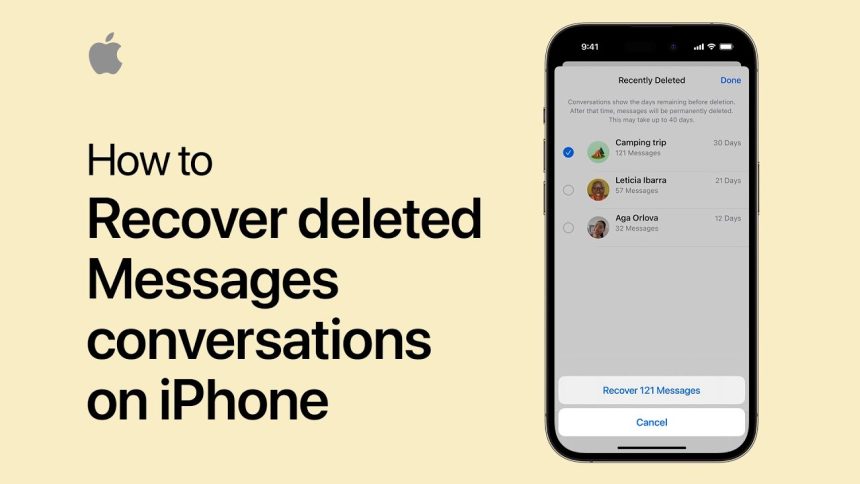
If your iPhone runs iOS 16 or later, the Messages app includes a Recently Deleted folder. This feature works similarly to the Photos app.
Open Messages and tap Edit or Filters at the top. Select Recently Deleted. Messages deleted within the last 30 to 40 days often appear here.
Restoring Messages from Recently Deleted
Select the conversations you want back and tap Recover. Messages return instantly to the main inbox. This method preserves timestamps and attachments, making it the easiest recovery option.
If messages do not appear here, they were either deleted too long ago or removed before the feature existed.
Find Deleted Texts on iPhone Using iCloud Backup
Understanding iCloud Backup Recovery
If messages are not in Recently Deleted, iCloud backups provide the next best option. iCloud stores snapshots of your device data from specific dates. If messages existed during that backup, recovery remains possible.
This method requires erasing the device and restoring from backup, so preparation matters.
Steps to Restore Messages from iCloud Backup
Check backup dates first by opening Settings, tapping your Apple ID, selecting iCloud, then Manage Storage, and finally Backups. Choose your device to view backup timestamps.
If a backup exists from before deletion, erase the iPhone by navigating to Settings, General, Transfer or Reset iPhone, then Erase All Content and Settings. During setup, choose Restore from iCloud Backup and select the correct date.
Once completed, messages included in that backup return.
Important Considerations Before Restoring
Restoring replaces current data with backup data. Any messages received after that backup disappear unless backed up separately. This method works best when message loss happened recently.
Recover Deleted Text Messages Using Finder or iTunes Backup
Finder and iTunes Backup Explained
Many users back up iPhones to a computer using Finder on macOS or iTunes on Windows. These local backups store message data unless encrypted backups were disabled.
Local backups often provide faster recovery than iCloud because they do not rely on internet speed.
How to Restore Messages from Computer Backup
Connect iPhone to computer and open Finder or iTunes. Select the device and choose Restore Backup. Pick a backup dated before message deletion.
Wait for restore completion and check Messages app.
Encrypted backups store more complete message data, including attachments and metadata, increasing recovery success.
Find Deleted Texts Without Backup
Checking Other Linked Apple Devices
Messages synced across devices may still exist elsewhere. Check iPad, MacBook, or Apple Watch signed into the same Apple ID. Sometimes messages remain on one device due to sync delays.
If found, disable syncing temporarily and copy important content before re-enabling.
Carrier Message Records
Cell carriers keep limited SMS and MMS records, usually metadata rather than content. In rare cases, carriers may provide message logs for legal or billing reasons. This option depends on provider policies and local laws.
While full content recovery remains unlikely, timestamps and numbers may help reconstruct information.
Using Trusted Third-Party Recovery Tools
When Third-Party Tools Make Sense
If backups do not exist and messages exceed recovery windows, professional iPhone recovery software may help. These tools scan device storage or backups for remnants of deleted messages.
Choose only reputable tools with transparent privacy policies. Avoid services asking for Apple ID passwords.
What to Expect from Recovery Software
Success varies. Older deletions have lower recovery rates due to data overwriting. Recovery tools work best when device usage remains minimal after deletion.
Recovered messages may appear without attachments or original timestamps, but content retrieval still helps.
Preventing Future Message Loss
Enable Message Backup Settings
Ensure Messages are enabled under iCloud settings. This allows syncing across devices and improves recovery options.
Enable automatic iCloud backups while charging and connected to Wi-Fi. Regular backups protect against accidental deletions.
Review Auto-Delete Message Settings
iPhone allows automatic deletion of messages older than 30 days or one year. Check this setting under Settings, Messages, Keep Messages. Select Forever to prevent automatic removal.
Privacy and Security When Recovering Messages
Recovery methods should prioritize data safety. Apple-approved methods such as iCloud, Finder, and iTunes remain safest. When using third-party tools, research company reputation and data handling practices carefully.
Never share Apple ID credentials. Avoid free tools that promise instant recovery without clear explanation.
Expert Insight on iPhone Message Recovery
From a technical perspective, message recovery depends on timing and storage behavior. Once iOS overwrites deleted message data, recovery becomes nearly impossible. That is why quick action matters.
Professionals recommend stopping device use immediately after deletion to avoid overwriting data blocks.
Conclusion
Finding deleted texts on iPhone remains possible in many cases, especially with newer iOS features and regular backups. Recently Deleted folders, iCloud backups, and computer backups provide strong recovery paths. Even without backups, options still exist through linked devices or professional tools.
The key lies in understanding iPhone data behavior and acting promptly. With proper preparation and safe recovery methods, lost messages often return, saving time, stress, and important information.
FAQs
Can deleted text messages be recovered on iPhone?
Yes, deleted texts can often be recovered using Recently Deleted, iCloud backups, or computer backups.
Where do deleted texts go on iPhone?
Deleted texts move to the Recently Deleted folder for a limited time on newer iOS versions.
How long do deleted messages stay on iPhone?
Deleted messages usually remain for up to 30–40 days before permanent removal.
Can I recover deleted texts without a backup?
Recovery without a backup is difficult but sometimes possible using synced devices or recovery tools.
Does restoring from iCloud delete current data?
Yes, restoring from iCloud replaces current data with the selected backup version.