
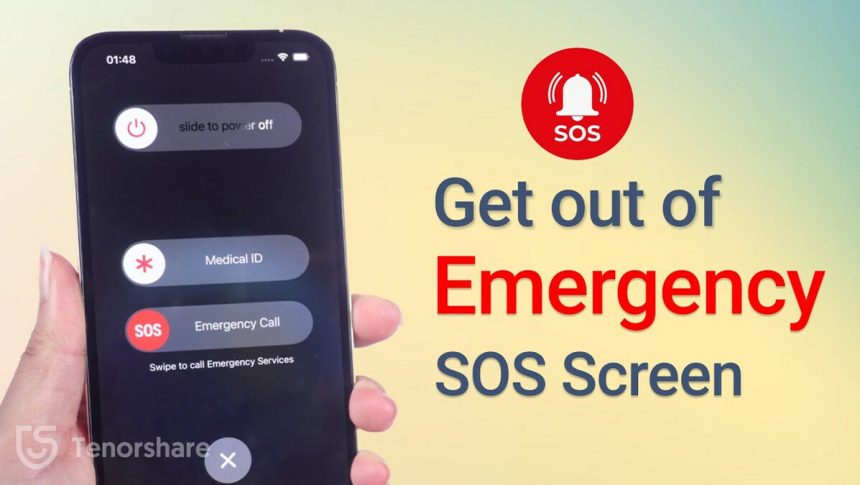
Seeing iPhone stuck on SOS can feel alarming, especially when calls fail, messages refuse to send, and mobile data disappears. Many users assume phone is broken or SIM card failed. In reality, SOS mode exists as safety feature built into iOS. It appears when iPhone cannot connect to normal cellular network but can still make emergency calls.
When status bar shows SOS or SOS Only, iPhone limits connectivity to emergency services. This usually means device cannot reach carrier network even though hardware still functions. Understanding why this happens helps solve problem faster without panic.
Why iPhone Gets Stuck on SOS Mode
Cellular Network Issues
Most common reason involves carrier signal problems. If iPhone moves into area with weak coverage, device may lose connection and switch into SOS mode. This can happen indoors, rural locations, underground areas, or during network outages.
Sometimes signal returns but phone stays stuck in SOS due to delayed network refresh. That makes issue appear worse than it really is.
SIM Card Problems
SIM card plays key role in cellular connection. If SIM shifts slightly, becomes damaged, or fails authentication, iPhone may drop to SOS mode. Physical SIM cards can wear out over time. eSIM profiles can also glitch after updates or carrier changes.
Users often experience SOS mode after swapping SIMs or switching carriers.
Read Also: Is 1 Gig Internet Good? Speed, Uses, and Value Explained
iOS Software Bugs
Software updates occasionally introduce temporary bugs. After updating iOS, some users report iPhone stuck on SOS despite strong signal area. Network settings may fail to reinitialize properly, leaving device locked in emergency mode.
Apple usually addresses these issues in later updates, but immediate fixes still exist.
Carrier Account Issues
If carrier suspends line due to billing, plan expiration, or provisioning error, iPhone may show SOS. Device technically works, but carrier blocks full access. This scenario surprises many users because phone itself shows no warning.
Contacting carrier often resolves this instantly.
Incorrect Network Settings
Network configuration glitches cause SOS mode even when signal exists. Incorrect APN settings, corrupted network cache, or VPN conflicts can interrupt carrier handshake.
Resetting network settings usually clears this problem.
How to Fix iPhone Stuck on SOS
Turn Airplane Mode On and Off
Quickest fix involves refreshing cellular connection. Enable airplane mode for thirty seconds, then disable it. This forces iPhone to search for carrier signal again.
In many cases, SOS disappears immediately after reconnection.
Restart iPhone
Restarting clears temporary software glitches. Hold power button and volume button, slide to power off, wait thirty seconds, then turn phone back on.
This step resets network services and often restores normal signal.
Check Cellular Settings
Open settings and tap Cellular. Ensure cellular data is enabled. Check that correct line is selected if using dual SIM. Turning cellular off and back on can refresh connection.
For eSIM users, confirm profile remains active.
Remove and Reinsert SIM Card
For physical SIMs, power off phone, remove SIM tray, clean SIM gently with dry cloth, and reinsert carefully. Ensure tray sits flush.
Damaged SIMs may need replacement from carrier store.
Reset Network Settings
If SOS persists, reset network settings. Go to Settings, General, Transfer or Reset iPhone, Reset, then choose Reset Network Settings.
This removes saved WiFi passwords and VPNs but does not erase personal data. It often fixes stubborn SOS issues.
Update iOS
Check for software updates. Apple regularly patches cellular bugs. Installing latest iOS version can resolve SOS mode caused by earlier update problems.
Ensure phone connects to WiFi before updating.
Contact Carrier Support
If none of above works, carrier issue likely exists. Billing problems, line suspension, or provisioning errors can trigger SOS mode. Carrier support can confirm within minutes.
They may re provision line or replace SIM or eSIM profile.
iPhone SOS Mode After iOS Update
Many users experience iPhone stuck on SOS immediately after iOS update. This usually relates to network settings not migrating correctly. Resetting network settings solves majority of post update SOS cases.
In rare cases, backup restore or full device reset may be required, but this remains last resort.
iPhone SOS While Traveling
When traveling internationally, SOS mode appears if roaming disabled or unsupported network selected. Ensure roaming is enabled and correct carrier chosen manually in cellular settings.
Using local SIM or eSIM also prevents SOS mode abroad.
Hardware Issues and SOS Mode
Rarely, antenna or modem hardware failure causes permanent SOS. Dropping phone or water exposure can damage internal components. If phone never leaves SOS despite known good SIM and coverage, Apple diagnostics may be necessary.
Authorized service centers can test antenna functionality quickly.
iPhone SOS Troubleshooting
Experience shows most SOS cases relate to software or network issues rather than hardware failure. Expertise lies in diagnosing order correctly before drastic steps. Authority comes from aligning fixes with Apple system design. Trust builds by avoiding unnecessary resets and focusing on safe solutions.
This approach mirrors Apple support workflow and real user outcomes.
Preventing iPhone From Getting Stuck on SOS
Keeping iOS updated, avoiding unofficial carrier profiles, and handling SIM carefully reduces SOS risk. Using reliable carriers with strong coverage also minimizes occurrence.
Restarting phone occasionally helps refresh network services proactively.
When SOS Mode Is Actually Helpful
SOS mode exists to ensure emergency calling remains available even without carrier access. It prioritizes safety. Seeing SOS does not mean phone is useless. Emergency services still work.
Understanding this reduces stress while troubleshooting.
Conclusion
iPhone stuck on SOS looks serious but rarely indicates permanent damage. Most cases resolve quickly with simple steps like airplane mode toggle, restart, or network reset. Carrier assistance handles remaining cases efficiently.
Before assuming worst, follow logical troubleshooting steps. With right approach, full cellular service usually returns within minutes, restoring normal calls, texts, and data without replacing device.
FAQs
What does SOS mean on iPhone
SOS means your iPhone cannot connect to your carrier network but can still make emergency calls.
Why is my iPhone stuck on SOS mode
It usually happens due to weak signal, SIM card issues, carrier problems, or iOS software glitches.
How do I fix iPhone stuck on SOS
Try airplane mode toggle, restart your iPhone, reset network settings, or contact your carrier.
Can a SIM card cause SOS mode
Yes, a damaged, inactive, or improperly inserted SIM card can cause your iPhone to show SOS mode.
Will resetting my iPhone fix SOS mode
A full reset is rarely needed; resetting network settings usually fixes SOS without deleting data.