
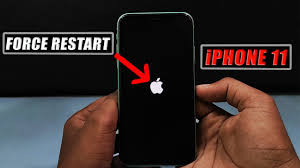
If your iPhone becomes unresponsive, frozen, or behaves unpredictably, a hard restart is often the fastest way to resolve the issue. Unlike a standard restart, which requires navigating menus, a hard restart forces your device to reboot immediately.
This guide explains everything you need to know about hard restarting your iPhone, including step-by-step instructions for different models, tips for safety, and why this method is sometimes necessary.
What Is a Hard Restart?
A hard restart, also known as a force restart, is a method to reboot your iPhone when it stops responding. It temporarily interrupts power to the system, forcing the device to restart without affecting your personal data. Unlike a factory reset, a hard restart does not erase apps, settings, or files.
Understanding the distinction is important. While a soft restart is the standard way to power off and turn on your iPhone through the screen menus, a hard restart is used when the device is frozen or otherwise unresponsive. It is a safe and efficient troubleshooting method supported by Apple for nearly all iPhone models.
Why You Might Need a Hard Restart
There are several scenarios where a hard restart becomes necessary. If your iPhone screen is frozen, buttons do not respond, or apps crash repeatedly, a hard restart can restore normal functionality. Software glitches, temporary memory issues, or incomplete updates often cause these problems.
In some cases, third-party apps can cause system instability, making a hard restart the quickest way to regain control. Users often notice that after a hard restart, the device operates more smoothly, apps respond faster, and random freezes disappear. It’s an essential troubleshooting step that can save time and prevent more drastic measures like data restoration.
Read Also: NYT Connections Hints April 11 – Puzzle #711 Guide
How to Hard Restart iPhone – Different Models
Apple uses different hardware across iPhone models, so the method for a hard restart varies depending on the generation. Following the correct procedure ensures the restart is successful and avoids accidental activation of other features like emergency calls.
Hard Restart iPhone 8, X, 11, 12, 13, 14, and 15
For iPhone models with Face ID or the side button, the procedure involves pressing a sequence of buttons. First, press and release the volume up button, then press and release the volume down button. Immediately press and hold the side button until the Apple logo appears on the screen. Once the logo appears, release the button. The device will reboot completely, which may take a few seconds.
Hard Restart iPhone 7 and 7 Plus
iPhone 7 and 7 Plus models require a slightly different approach. Press and hold both the volume down button and the side (or top) button simultaneously. Keep holding both buttons until the Apple logo appears, then release. This combination is specific to the hardware design of the iPhone 7 series and ensures the system restarts correctly.
Hard Restart iPhone 6, 6s, SE (1st generation), and Earlier
Older iPhone models rely on the Home button for a hard restart. Press and hold both the Home button and the top or side power button at the same time. Continue holding the buttons until the Apple logo appears, then release. These models do not have Face ID, so the combination is simpler but equally effective in rebooting the device.
Safety Tips When Performing a Hard Restart
While a hard restart is safe, it is important to follow instructions carefully. Avoid pressing unrelated button combinations, as some sequences may trigger emergency features or accessibility shortcuts.
If your iPhone frequently requires hard restarts, it may indicate an underlying software or hardware issue. Frequent forced restarts should prompt a check of iOS updates, app behavior, or even a visit to an Apple Store for diagnostics. Performing a hard restart occasionally is normal, but repeated reliance may signal a problem that requires professional attention.
Benefits of Hard Restarting Your iPhone
Hard restarting your iPhone offers several benefits. It clears temporary system memory, resolves app freezes, and restores responsiveness. Unlike a factory reset, it does not affect your personal files, making it a convenient and non-destructive troubleshooting method.
Additionally, hard restarting can help with performance issues. If your device is running slowly, apps are lagging, or notifications are delayed, a quick reboot often restores normal speed. This method also allows users to continue working without having to backup or restore data, which can save time and reduce stress.
Common Misconceptions About Hard Restarts
Some iPhone users worry that hard restarting may damage the device. In reality, it is an officially supported troubleshooting step recommended by Apple. Performing a hard restart incorrectly, such as holding buttons too briefly or using the wrong combination, will simply fail to restart the device rather than cause damage.
Another misconception is that hard restarting can erase data. As mentioned earlier, it does not affect apps, settings, or files. A factory reset, not a hard restart, is required to erase content from the device. Understanding this difference helps users feel confident using a hard restart without fear of data loss.
When to Avoid a Hard Restart
While generally safe, a hard restart should not replace normal software maintenance. Avoid forcing a restart during iOS updates or while syncing critical data, as interrupting these processes can cause software glitches or incomplete updates.
If your device frequently freezes, it is better to investigate underlying causes rather than relying solely on hard restarts. Persistent issues may require software updates, app management, or technical support. Treating a hard restart as a temporary solution rather than a permanent fix ensures better long-term device performance.
Alternative Troubleshooting Steps
Before performing a hard restart, there are other troubleshooting steps worth trying. Closing unresponsive apps, restarting through the settings menu, and ensuring sufficient storage can resolve minor glitches.
For iPhone users experiencing frequent freezes, updating iOS is crucial. Apple regularly releases patches to fix bugs and improve performance. If problems persist, resetting network settings or clearing app caches may help. Hard restarting remains a quick method for immediate relief, but combining it with regular maintenance ensures smoother device operation.
Conclusion
Knowing how to hard restart iPhone is an essential skill for any user. Whether your device freezes, becomes unresponsive, or experiences software glitches, a hard restart provides an efficient and safe solution. Following model-specific instructions ensures the restart is successful without risking data loss or device malfunction.
While hard restarts are simple, understanding the benefits and limitations allows users to approach device troubleshooting confidently. They restore responsiveness, improve performance, and offer a quick fix when immediate action is necessary. For persistent issues, users should consider software updates, app management, or professional diagnostics to maintain long-term device health.
By mastering this technique, iPhone users gain a reliable tool to manage unexpected problems, maintain productivity, and ensure their device continues to operate smoothly. Hard restarting is not just a fix—it is part of responsible device management and digital literacy for any iPhone owner.
FAQs
1. What is a hard restart on iPhone?
A hard restart forces your iPhone to reboot when it is frozen or unresponsive without erasing data.
2. How do you hard restart iPhone 12 or later?
Press volume up, then volume down, then hold the side button until the Apple logo appears.
3. Does hard restarting erase iPhone data?
No, it only reboots the device without affecting apps, files, or settings.
4. When should I perform a hard restart?
Use it when the iPhone screen freezes, buttons don’t respond, or apps crash repeatedly.
5. Can hard restarting damage my iPhone?
No, it is safe and officially supported by Apple for troubleshooting frozen or unresponsive devices.